How to Import Confluence Docs into CivicAi
Sync your Confluence workspace with CivicAi in minutes. Let your AI learn from your existing docs and answer customer queries smartly.
You can import your Confluence knowledge base into CivicAi in just a few steps. Here’s how to do it:
🔑 Step 1: Log in to Atlassian
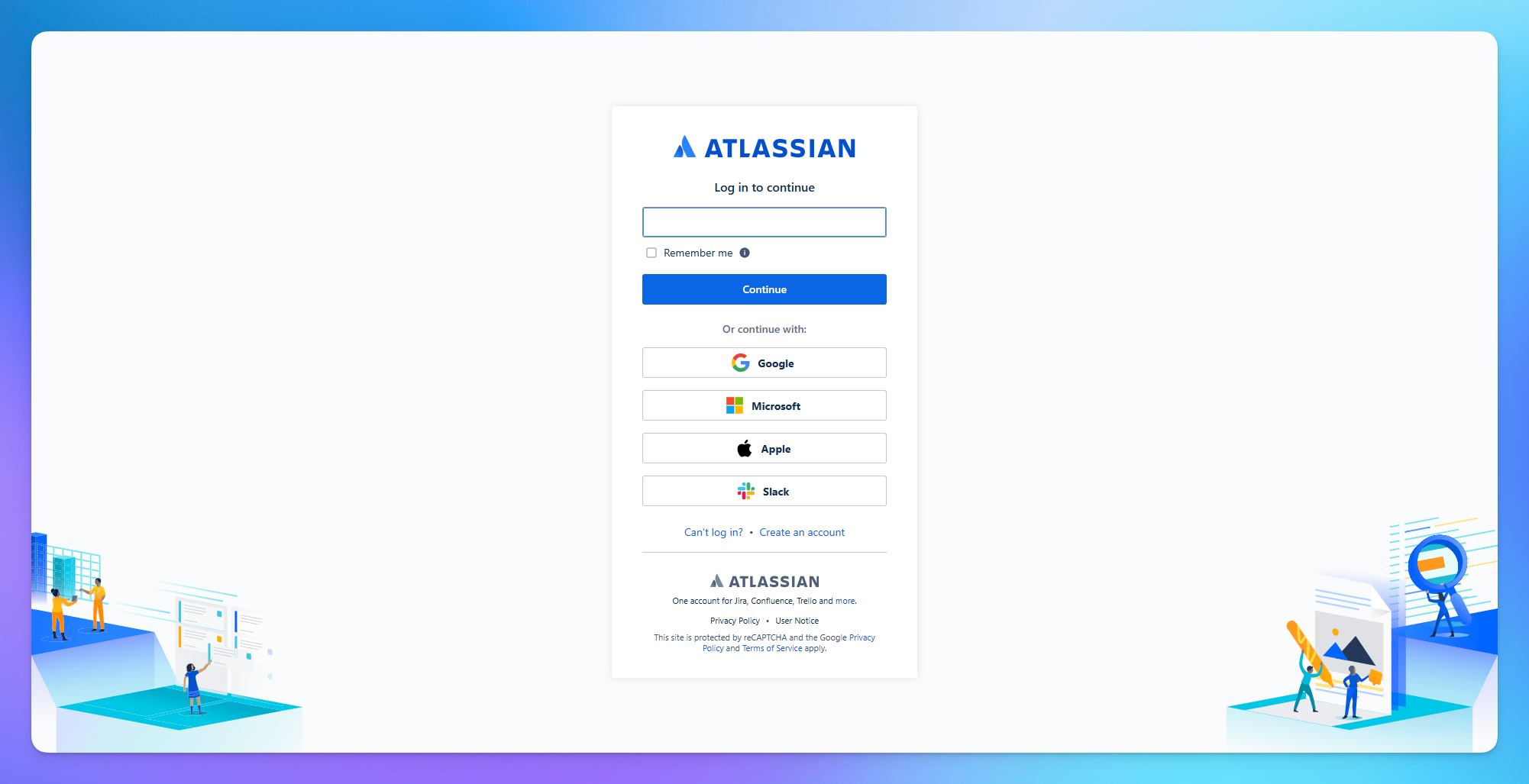
Go to Atlassian and log in to your account.
If you don’t have one, click Sign Up and create a new account.
🔓Step 2: Access Confluence
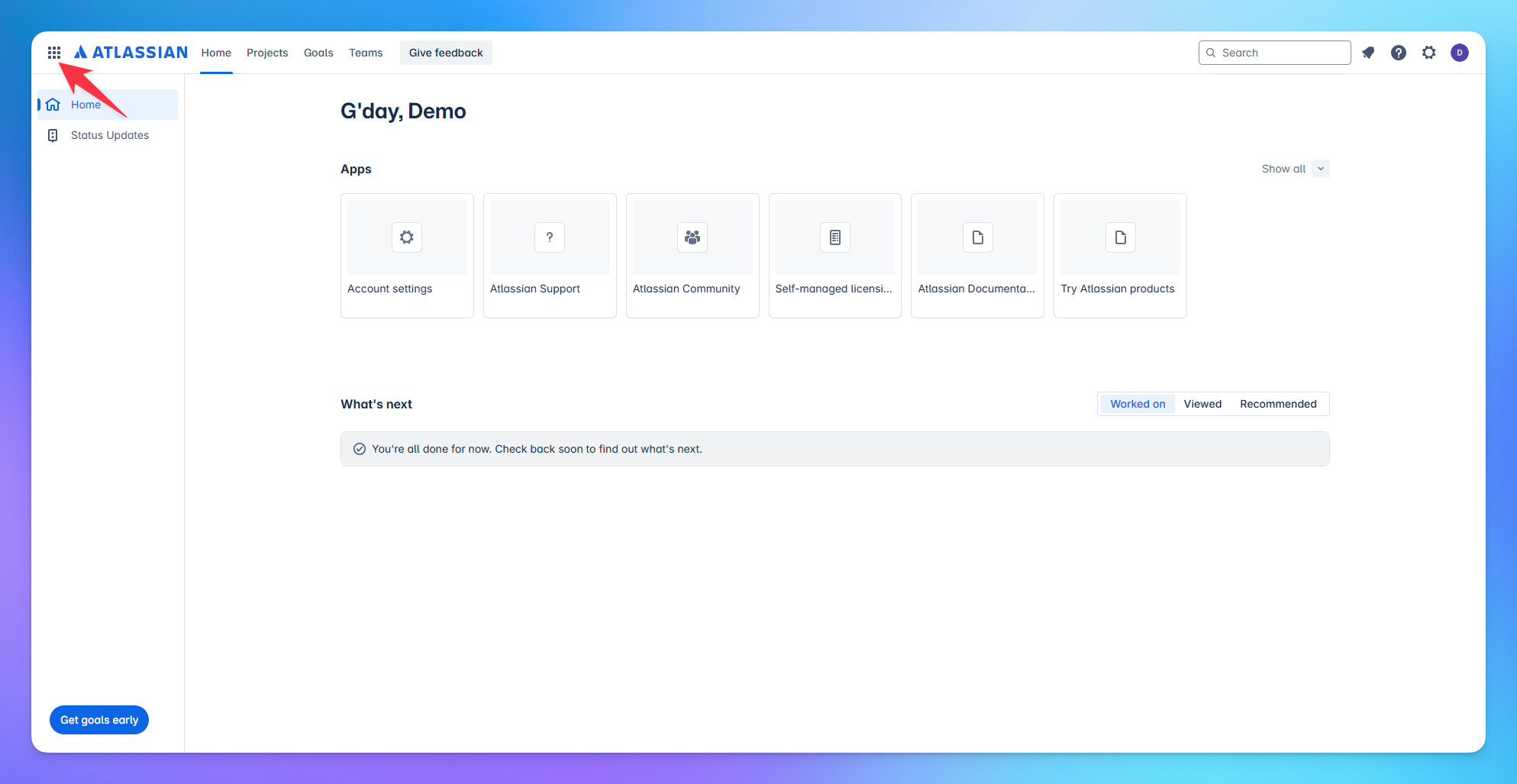
Once logged in, go to the home screen.
Click on the “space menu” icon located on the left-hand sidebar.
Select the option “Explore the product.”
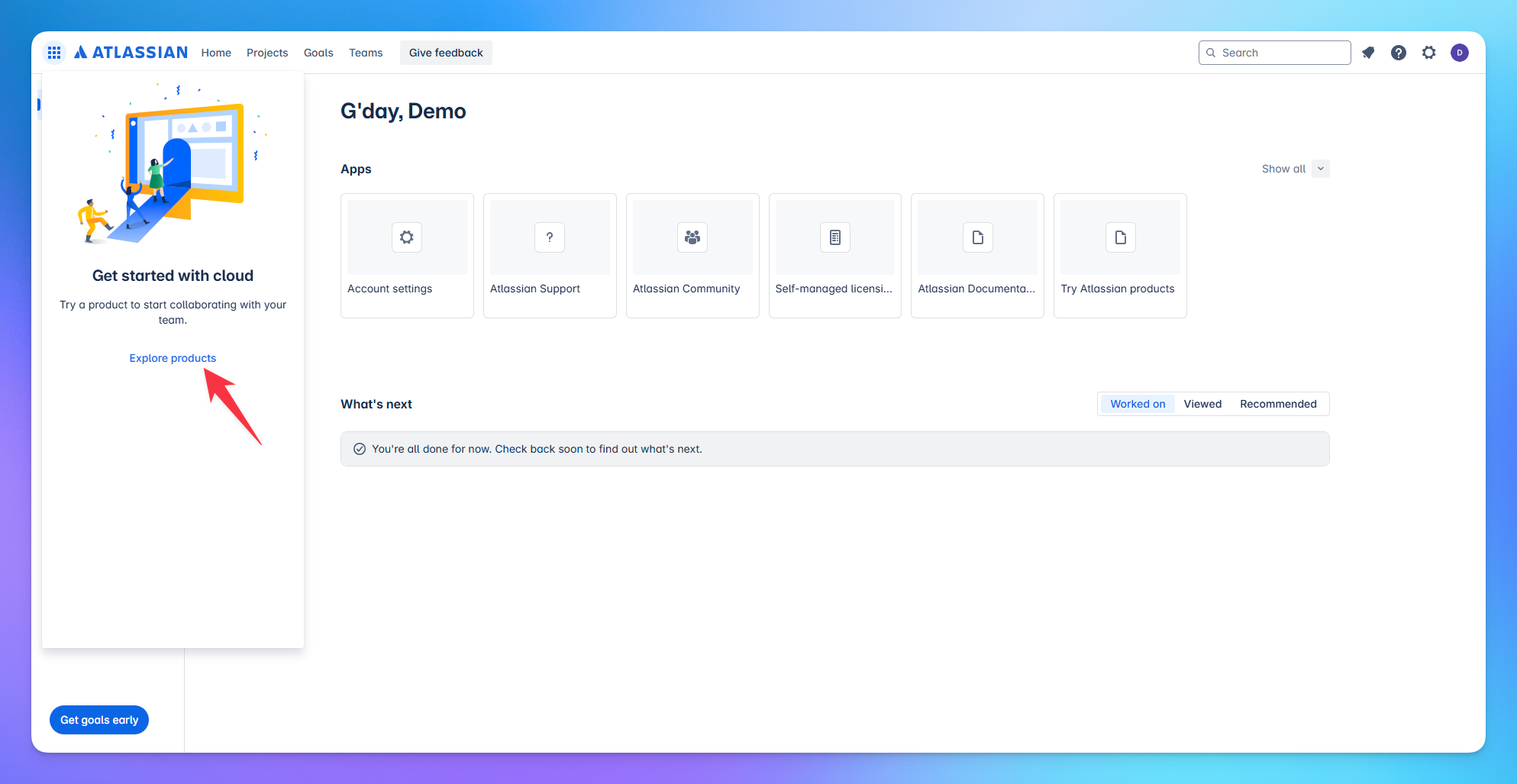
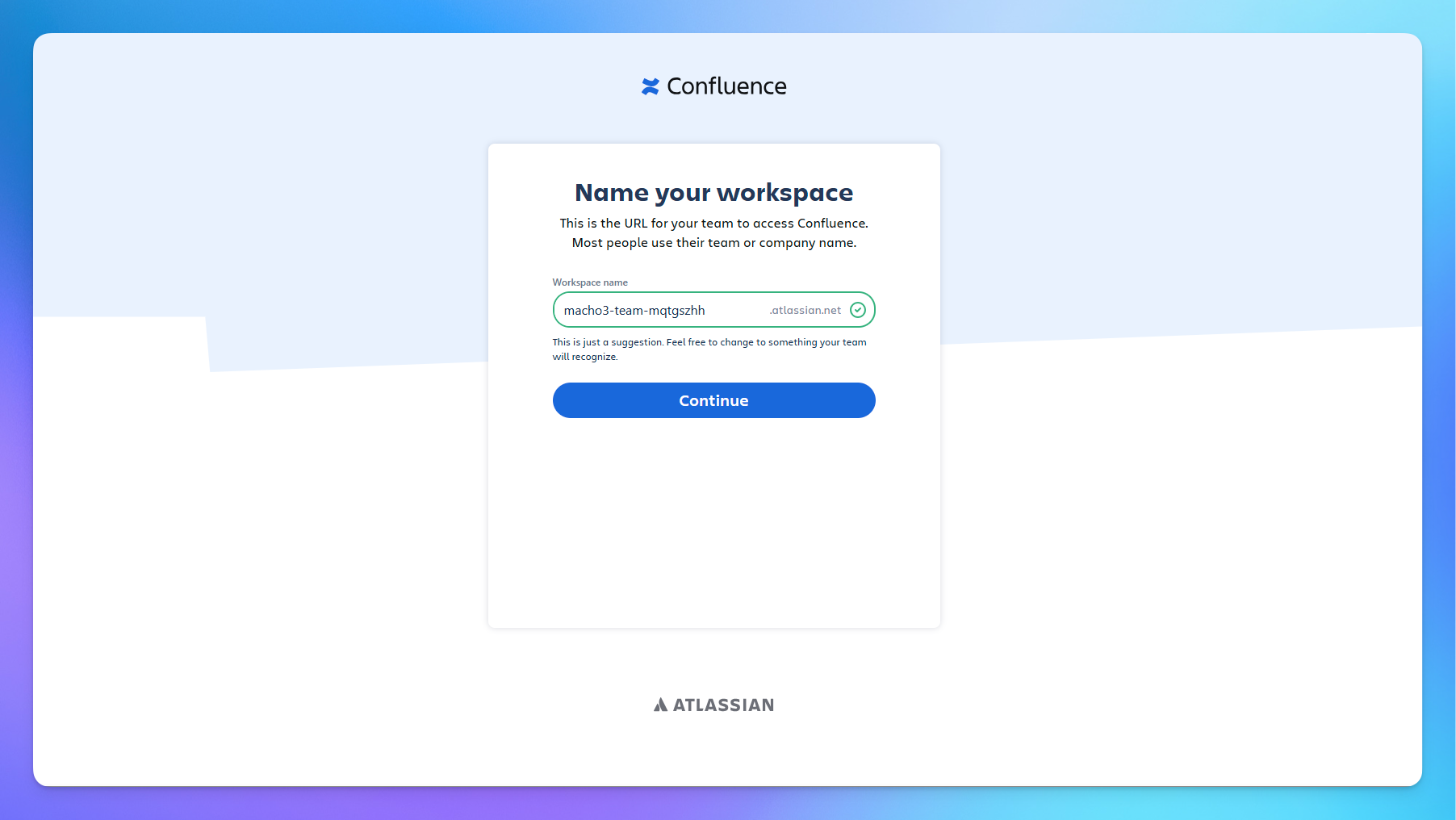
🏗 Step 3: Set Up Your Workspace
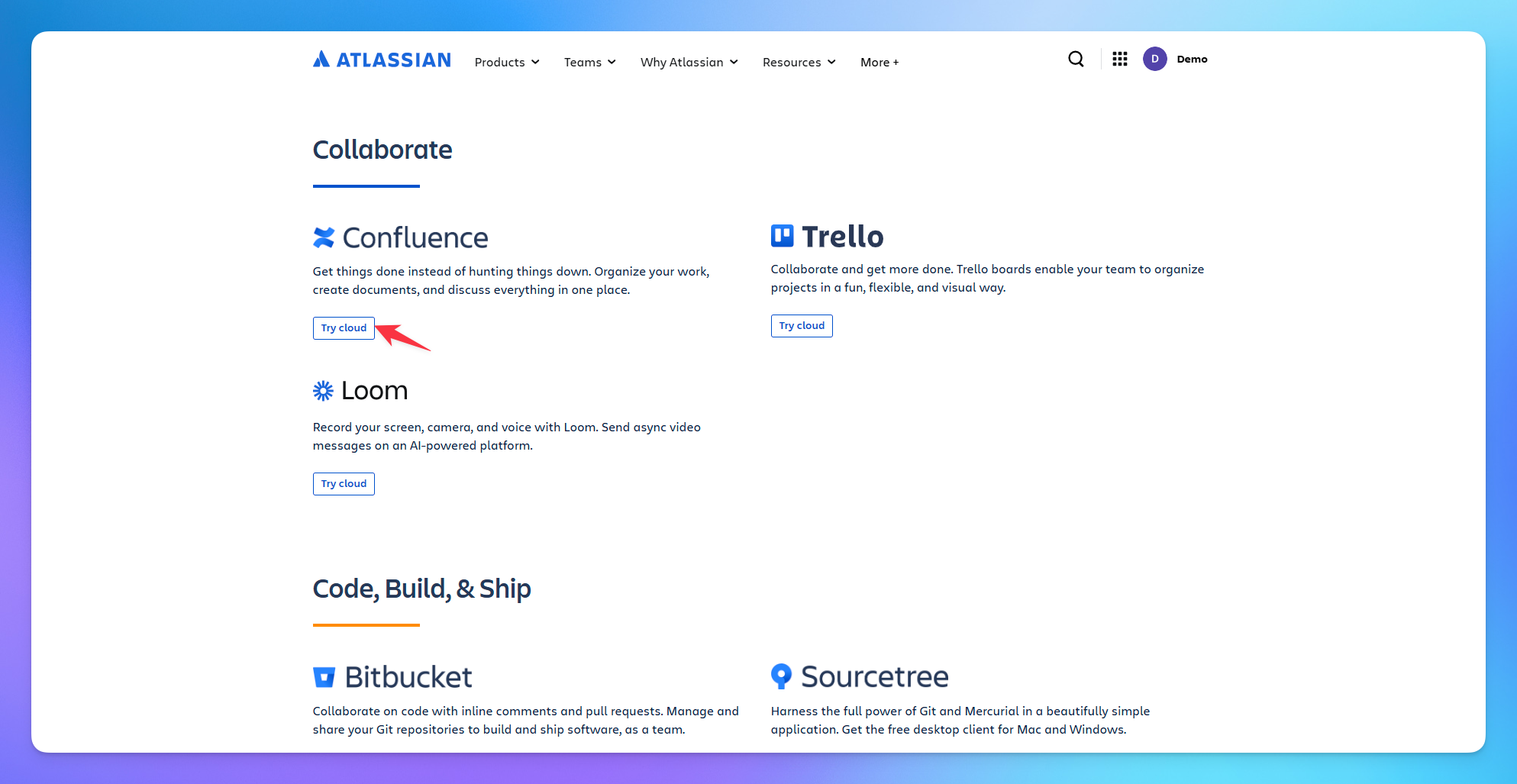
Scroll down to find Confluence.
Click on it and create a new workspace.
Complete the setup by entering the required details.
🔄 Step 4: Import to YourGPT
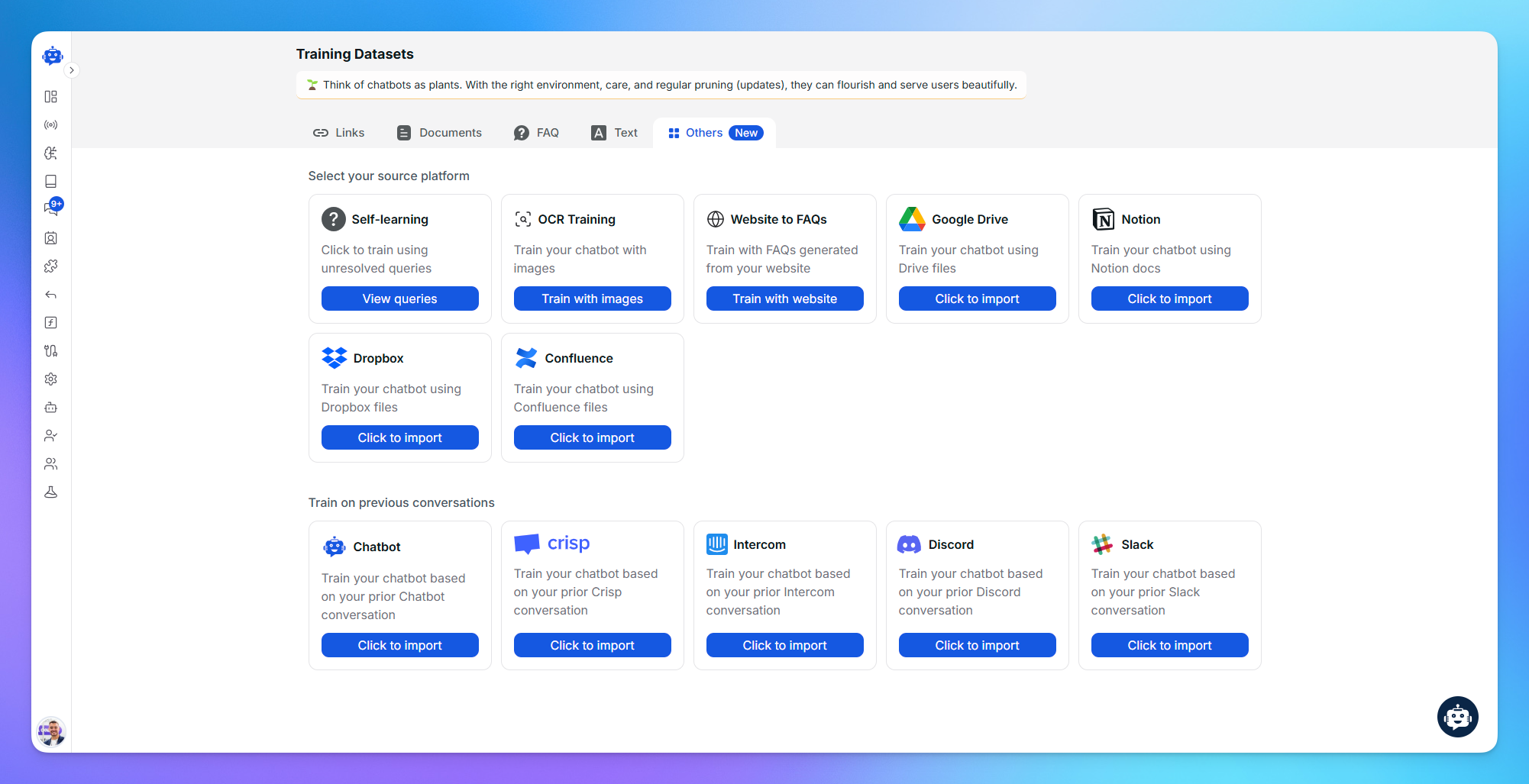
Go to your CivicAi Dashboard.
Click on the Training section in the sidebar.
Select Confluence as your data source.
Click on Import and follow the prompts.
✅ Step 5: Finish Import
Set up the workspace inside CivicAi as needed.
Wait for the files to process.
Once completed, you’ll see a confirmation that your Confluence files were successfully imported.
Check if your Confluence workspace is public or shared with your integration account. For private pages, ensure access is granted.
Related Articles
Train Your AI Agent with Outlook Data
Connect Outlook and create a training job to train your AI agent
Train Your AI Agent with Gmail Data
Connect Gmail and create a training job to train your AI agent
How to Train Bot with the links?
Train your AI chatbot using links.
How to Bulk Train chatbot with Links using CSV file?
Bulk train your chatbot with links using a CSV file
How to change Re-index & Remove link?
Easily train on updated content from your website or remove training data from a link
How to Train Chatbot using Documents Files?
Train, Inspect and Remove document
How to Training Chatbot with FAQs?
Train Your AI Chatbot with FAQs: Add, Import, or Export FAQ Files