How to Create an AI Agent with CivicAI
Learn how to create a custom AI agent using CivicAI's no-code platform in just 2 minutes. Creating an AI chatbot can improve customer service and engagement, making your business operations more efficient. Follow this guide to set up your Chatbot (AI agents) in just a few simple steps.
CivicAI Chatbot: Two Powerful Options for Your Business Needs
No-Code Chatbot (Knowledgebase Agents): Ideal for common business needs that require quick automation using AI. CivicAI's no-code solution is easy to set up and fully customizable to match your brand.
Chatbot Studio (Flow-Guided Conversational Agent): Ideal for advanced business needs that demand a more interactive, guided conversational experience & advanced workflow. This option allows for greater control and customization.
CivicAI uses advanced AI technology to deliver intelligent, natural responses, and supports multiple languages for effective communication with a global audience.
Step-by-Step Guide to Set Up Your CivicAI AI Agent
Sign Up: Visit the CivicAI Chatbot to create an account and begin setting up your AI-powered co-pilot.
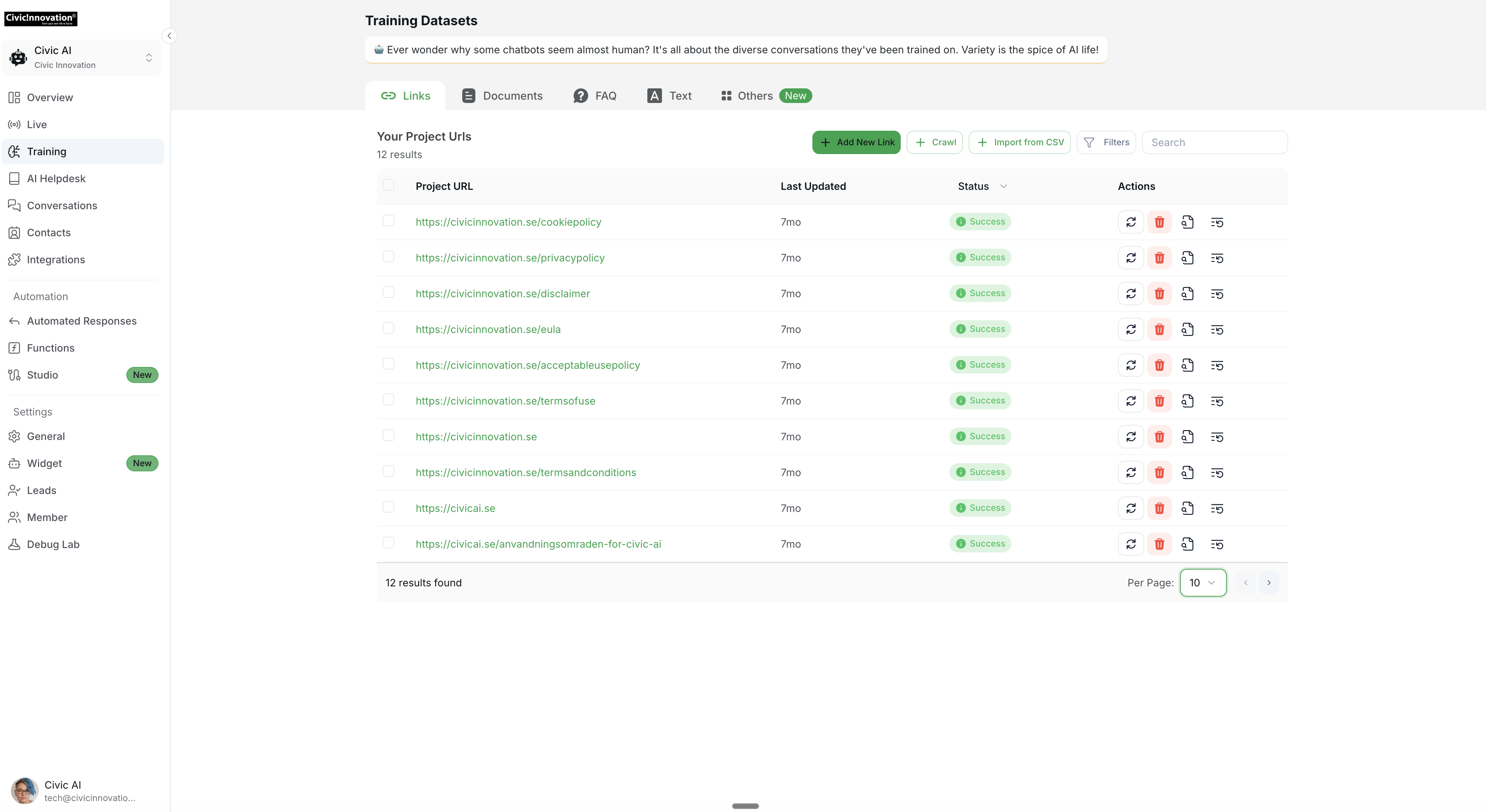
Train: Use your custom data to train the chatbot or knowledgebase AI agent without coding. CivicAI allows you to utilize multiple data sources, such as documents, website links, and FAQs.
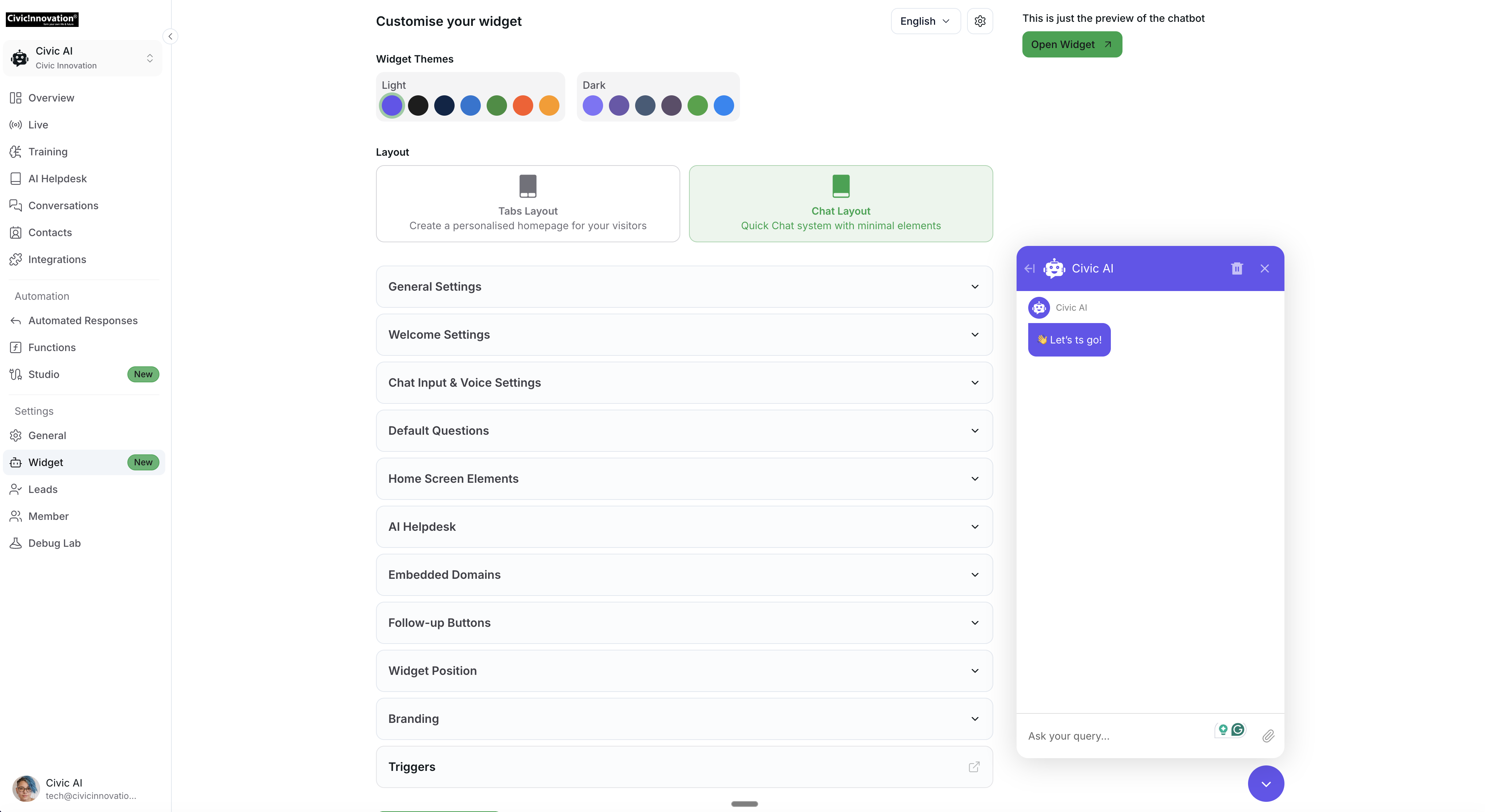
Customize: Personalize the chatbot's or AI agent's appearance and responses to reflect your brand's voice using the no-code builder.
Add Your Agent Persona
Purpose (e.g., support or informational)
Tone and style (formal, friendly, professional)
Personality traits (helpful, concise, approachable)
Response structure (bullet points, markdown formatting)
Restrictions (what to avoid or refuse to answer)
Integrate: Embed the chatbot or knowledgebase AI agent on your website or mobile app with a simple code snippet. Connect it to your preferred social channels for broader reach.
Go Live: Publish your chatbot or AI agent and watch it interact with your users in real-time.
Flexible Training Options
CivicAI makes training easy by allowing a wide range of data types. You can upload documents, FAQs, text inputs, CSV, XLS and more file formats, and even use content from platforms like Notion, Dropbox, Google Drive, and YouTube to train your chatbot or knowledgebase AI agent effectively.
Creating Sequential AI Agents with AI Studio
Sign Up or Log In: Start by logging into your CivicAI Chatbot account.
In the Chatbot dashboard, tap on Studio.
Create a Scenario: Click "Create Scenario" on the left-hand menu to begin designing your chatbot flow.
Design the Sequential Flow: Arrange blocks and steps to control how your chatbot or AI agent interacts with users.
Add and Configure Nodes: Drag nodes and steps onto the canvas and customize them based on your AI agent's desired behavior.
Test and Refine: Continuously test and tweak your chatbot or AI agent to ensure a seamless user experience.
For detailed guidance on creating scenarios and configuring flows, check out this article: Flow: Scenarios, Blocks, Steps & Connections.
Need More Help?
If you need additional support, feel free to contact the CivicAI Team for help. Our support team is ready to assist you in seamlessly making the most of your chatbot and knowledgebase AI agents.
Related Articles
Queue Replies
Learn how to setup Queue Replies in CivicAi Chatbot
Prompt Templates examples
Examples of detailed bot persona prompts and their restrictions for AI chatbots.
Limiting Number of Messages on your AI Agent
Explore how to effectively manage user access by limiting the number of messages
Building an AI Assistant for HR Operations
Handle employee queries, onboarding, and more with AI
Build an Internal AI Knowledgebase for your Team
Use AI to automate team workflows, onboard faster, and give instant access to business knowledge.
Make your AI Chatbot Proactive to Boost Visitor Engagement
Set up proactive chatbot triggers in CivicAi to boost visitor engagement and start conversations at the right moments.
How to Set Up Notifications for Human Escalation
This guide provides step-by-step instructions on how to set up notifications across various platforms when a human escalation request is made.